Posts

Showing posts with the label tutorial

[Tutorial] Unleash the Power of Stable Diffusion Locally with ComfyUI: A Step-by-Step Guide

Image
Author: suihou827 Ready to create mind-blowing art with Stable Diffusion from the comfort of your own computer? This comprehensive guide will walk you through the process, even if you're a beginner! Let's dive in: 1. Install 7zip: Grab 7zip, a free file archiver, from its official website: https://www.7-zip.org/ Double-click the downloaded file and follow the instructions to install it. 2. Set Up ComfyUI: Download the latest ComfyUI release for Windows from GitHub: https://github.com/comfyanonymous/ComfyUI/releases/download/latest/ComfyUI_windows_portable_nvidia_cu121_or_cpu.7z Right-click the .7z file, select "7-zip", and then "Extract here". Navigate to the extracted folder and run either "run_nvidia_gpu.bat" (for NVIDIA GPUs) or "run_cpu.bat" (for CPUs, slower). A URL will appear; copy and paste it into your web browser to open ComfyUI. 3. Download Checkpoints (Models): ComfyUI doesn't include checkpoints by default, so grab som...
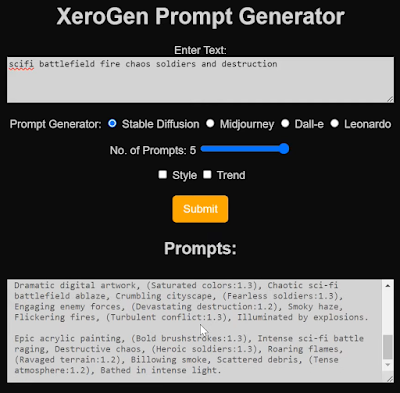
[Tutorial] XeroGen: Generate High-Quality Prompts for Stable Diffusion, Midjourney, Dall-E, and Leonardo AI

Image
What is XeroGen? XeroGen  is a subscription-based platform that combines prompt generators for Stable Diffusion, Midjourney, Dall-E, and Leonardo AI into one. It helps you create high-quality prompts for these AI image generators quickly and easily, saving you time and effort. How does XeroGen work? Specify your desired image: Tell XeroGen what you want to generate, like "a cyberpunk cityscape" or "a portrait of a cat in a hat." Choose your AI image generator: Select the AI image generator you want to use, such as Stable Diffusion or Midjourney. Get prompts: XeroGen will generate several prompts based on your preferences. You can also specify the number of prompts you want (up to five). Fine-tune the prompts (optional): You can customize the prompts to your liking using the available sliders and options. Use the prompts in your AI image generator: Copy the prompts and paste them into your chosen AI image generator to create your artwork! Benefits of using XeroGen: S...

[Tutorial] Scenario AI: Create Consistent Characters

Image
  In this short tutorial, I will show you how to use Scenario AI, a new AI for quick and easy generating game assets. Software Scenario (free tier available) Photoshop  or Gimp (or any photo editing software) Magnific AI (optional) Pricing Scenario AI offers 4 pricing plans, including a free option, perfect for this tutorial. How to use Scenario AI Choose a model: Go to the Models tab in Scenario. Select a model that is in the vibe of the character you want to create. Don't worry about finding the perfect one yet, you can blend and remix later. Click "Generate with this model" to get a basic idea of the style. Prompt your character: Use the prompt box to describe your character, including details like age, hair color, clothing type, etc. Add prompts for front, side, and back views to ensure the model generates the character from multiple angles. Use the Prompt Builder or Prompt Spark features for inspiration if needed. Don't forget negative prompts to avoid unwanted e...

[Tutorial] Stable Diffusion For Absolute Beginner - Part 7/7

Image
Creating Large Prints with Stable Diffusion Go back to Part 6 Stable Diffusion primarily operates at a native resolution of 512×512 pixels for v1 models. It’s essential to maintain a balance in image dimensions. Avoid straying too far from 512 pixels in width and height to prevent duplicate subjects in your images. Here’s how to set the initial image size: For Landscape Images: Set the height to 512 pixels and increase the width, e.g., 768 pixels (2:3 aspect ratio). For Portrait Images: Set the width to 512 pixels and increase the height, e.g., 768 pixels (3:2 aspect ratio). Moving on, to make larger prints, you’ll need to upscale the image. The AUTOMATIC1111 GUI, a free tool, offers popular AI upscaling options. Mastering Image Composition Stable Diffusion technology continually evolves, offering various methods for image composition control: Image-to-Image Direct Stable Diffusion to follow an input image loosely. For instance, generating a dragon using an eagle input image retains th...

[Tutorial] Stable Diffusion For Absolute Beginner - Part 6/7

Image
Understanding Custom Models Go back to Part 5 Custom models, stemming from the base models released by Stability AI and their partners, open up a world of possibilities. The base models—like Stable Diffusion 1.4, 1.5, 2.0, and 2.1—form the foundation. What distinguishes custom models is their training process, often derived from v1.4 or v1.5. These models undergo additional training using specific data to produce images with unique styles or focused on particular objects. The beauty of custom models lies in their diversity. They can emulate various styles, from anime or Disney to other AI-driven aesthetics, allowing for limitless creativity. Comparing five different models showcases the breadth of their image-generating capabilities. Moreover, it's relatively easy to blend two models to create a fusion style. Choosing the Right Model For beginners, starting with the base models is recommended. Models like v1.4, v1.5, v2.0, v2.1, and Stable Diffusion XL (SDXL) offer ample opportunit...

[Tutorial] Introducing Fooocus: Simplified Image Generation for Everyone

Image
Fooocus, an innovative image generating software built upon Gradio, brings a fresh approach to Stable Diffusion and Midjourney's designs. It merges the best of both worlds, offering an offline, open-source, and free platform while eliminating the need for manual tweaking, allowing users to focus solely on prompts and images. One of Fooocus's standout features is its streamlined user experience. It incorporates numerous inner optimizations and quality improvements, relieving users of the burden of complex technical parameters. Instead, it fosters seamless interaction between humans and computers, making image generation an enjoyable endeavor. Installation of Fooocus has been simplified significantly. With just a few clicks between downloading the software and generating the first image, users can dive right into the creative process. The software demands minimal GPU memory (4GB Nvidia) and is readily available for Windows users. How to Get Started with Fooocus Downloading Fooocu...