Posts

Showing posts with the label stable-diffusion

[Resource] New Implementation of MotionCtrl for ComfyUI has been realeased

Image
User  chaojie has released a new implementation of MotionCtrl for ComfyUI. Checkout their chaojie's Github page to download.

[Resource] ComfyUI 3D Pose Editor

Image
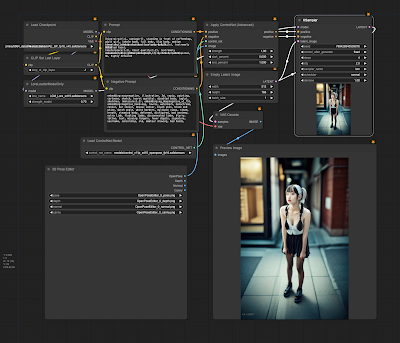
ComfyUI 3D Pose Editor is a new custom node for ComfyUI. Checkout the author's GitHub to download and use it with your ComfyUI.

[Resource] Pixel Power! ✨ u/aziib's Stable Diffusion Gems

Image
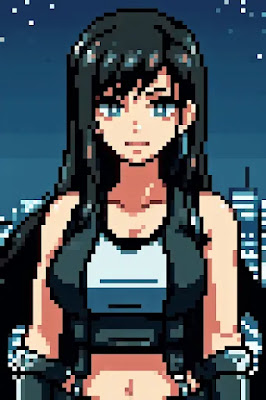
Retro art lovers, rejoice! u/aziib just dropped a pixel-perfect checkpoint & Lora for Stable Diffusion.  Craft Game Boy-worthy characters, landscapes, & objects – it's 8-bit magic! Download & join the pixel party! AziibPixelMix Checkpoint Game Boy Palette Style Lora You can discuss more here .

[News] Introducing PrimaPrompt's Image Degrader

Image
Author: alta007 The Stable Diffusion community received an exciting announcement from Reddit user u/primaprompt . They've unveiled the Image Degrader , a powerful tool now available on PrimaPrompt's website . Accessible to all, this user-friendly online tool lets you effortlessly enhance image realism in your browser. Simply upload an image, and within seconds, experience the magic of AI as it transforms your visuals into a more realistic rendition. User u/primaprompt is eager for user feedback and feature requests. Dive into this intuitive tool, contribute your thoughts, and witness the evolution of image enhancement. Explore the Image Degrader at PrimaPrompt Image Degrader and redefine the realism of your images today. You can discuss further in this thread .

[Tutorial] Unleash the Power of Stable Diffusion Locally with ComfyUI: A Step-by-Step Guide

Image
Author: suihou827 Ready to create mind-blowing art with Stable Diffusion from the comfort of your own computer? This comprehensive guide will walk you through the process, even if you're a beginner! Let's dive in: 1. Install 7zip: Grab 7zip, a free file archiver, from its official website: https://www.7-zip.org/ Double-click the downloaded file and follow the instructions to install it. 2. Set Up ComfyUI: Download the latest ComfyUI release for Windows from GitHub: https://github.com/comfyanonymous/ComfyUI/releases/download/latest/ComfyUI_windows_portable_nvidia_cu121_or_cpu.7z Right-click the .7z file, select "7-zip", and then "Extract here". Navigate to the extracted folder and run either "run_nvidia_gpu.bat" (for NVIDIA GPUs) or "run_cpu.bat" (for CPUs, slower). A URL will appear; copy and paste it into your web browser to open ComfyUI. 3. Download Checkpoints (Models): ComfyUI doesn't include checkpoints by default, so grab som...

[Tutorial] XeroGen: Generate High-Quality Prompts for Stable Diffusion, Midjourney, Dall-E, and Leonardo AI

Image
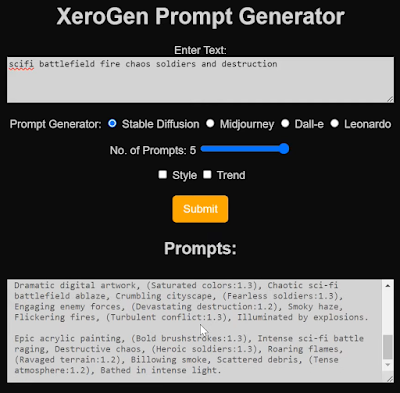
What is XeroGen? XeroGen  is a subscription-based platform that combines prompt generators for Stable Diffusion, Midjourney, Dall-E, and Leonardo AI into one. It helps you create high-quality prompts for these AI image generators quickly and easily, saving you time and effort. How does XeroGen work? Specify your desired image: Tell XeroGen what you want to generate, like "a cyberpunk cityscape" or "a portrait of a cat in a hat." Choose your AI image generator: Select the AI image generator you want to use, such as Stable Diffusion or Midjourney. Get prompts: XeroGen will generate several prompts based on your preferences. You can also specify the number of prompts you want (up to five). Fine-tune the prompts (optional): You can customize the prompts to your liking using the available sliders and options. Use the prompts in your AI image generator: Copy the prompts and paste them into your chosen AI image generator to create your artwork! Benefits of using XeroGen: S...

[Tutorial] Stable Diffusion For Absolute Beginner - Part 7/7

Image
Creating Large Prints with Stable Diffusion Go back to Part 6 Stable Diffusion primarily operates at a native resolution of 512×512 pixels for v1 models. It’s essential to maintain a balance in image dimensions. Avoid straying too far from 512 pixels in width and height to prevent duplicate subjects in your images. Here’s how to set the initial image size: For Landscape Images: Set the height to 512 pixels and increase the width, e.g., 768 pixels (2:3 aspect ratio). For Portrait Images: Set the width to 512 pixels and increase the height, e.g., 768 pixels (3:2 aspect ratio). Moving on, to make larger prints, you’ll need to upscale the image. The AUTOMATIC1111 GUI, a free tool, offers popular AI upscaling options. Mastering Image Composition Stable Diffusion technology continually evolves, offering various methods for image composition control: Image-to-Image Direct Stable Diffusion to follow an input image loosely. For instance, generating a dragon using an eagle input image retains th...

[Tutorial] Stable Diffusion For Absolute Beginner - Part 6/7

Image
Understanding Custom Models Go back to Part 5 Custom models, stemming from the base models released by Stability AI and their partners, open up a world of possibilities. The base models—like Stable Diffusion 1.4, 1.5, 2.0, and 2.1—form the foundation. What distinguishes custom models is their training process, often derived from v1.4 or v1.5. These models undergo additional training using specific data to produce images with unique styles or focused on particular objects. The beauty of custom models lies in their diversity. They can emulate various styles, from anime or Disney to other AI-driven aesthetics, allowing for limitless creativity. Comparing five different models showcases the breadth of their image-generating capabilities. Moreover, it's relatively easy to blend two models to create a fusion style. Choosing the Right Model For beginners, starting with the base models is recommended. Models like v1.4, v1.5, v2.0, v2.1, and Stable Diffusion XL (SDXL) offer ample opportunit...

[Tutorial] Introducing Fooocus: Simplified Image Generation for Everyone

Image
Fooocus, an innovative image generating software built upon Gradio, brings a fresh approach to Stable Diffusion and Midjourney's designs. It merges the best of both worlds, offering an offline, open-source, and free platform while eliminating the need for manual tweaking, allowing users to focus solely on prompts and images. One of Fooocus's standout features is its streamlined user experience. It incorporates numerous inner optimizations and quality improvements, relieving users of the burden of complex technical parameters. Instead, it fosters seamless interaction between humans and computers, making image generation an enjoyable endeavor. Installation of Fooocus has been simplified significantly. With just a few clicks between downloading the software and generating the first image, users can dive right into the creative process. The software demands minimal GPU memory (4GB Nvidia) and is readily available for Windows users. How to Get Started with Fooocus Downloading Fooocu...

[Tutorial] Stable Diffusion For Absolute Beginner - Part 5/7

Image
Correcting Image Flaws: Simple Solutions Go back to Part 4 When you come across those stunning AI-generated images on social media, chances are they've been through a series of touch-ups. Let's explore some common fixes: Face Enhancement AI often struggles with creating flawless faces, resulting in artifacts. To tackle this, AI artists rely on models like CodeFormer , integrated within AUTOMATIC1111 GUI , specially trained to restore faces. Left: Original images. Right: After face restoration. Patching Small Imperfections with Inpainting Getting the perfect image on the first try can be tough. A smarter approach involves generating a well-composed image and then using inpainting to fix any flaws. Here's a before-and-after example using inpainting. Applying inpainting with the original prompt succeeds about 90% of the time. Go back to Part 4 Continues to Part 6 Credit: https://stable-diffusion-art.com

[Tutorial] Stable Diffusion For Absolute Beginner - Part 4/7

Image
Understanding Parameters: Should You Tweak Them? Go back to Part 3 When using online generators, you'll often find a handful of parameters you can adjust. Let's dive into some key ones: Image Size: This dictates the dimensions of the output image. Usually set at 512x512 pixels, but changing it to portrait or landscape can significantly alter the image. For instance, opting for a portrait size could generate a full-body image. Sampling Steps: Ensure a minimum of 20 steps. If the image appears blurry, consider increasing this value. CFG Scale: The standard is around 7. Increase this to have the image align more closely with your prompt. Seed Value: A seed of -1 generates a random image. Choose a specific value to reproduce the same image. How Many Images Should You Create? When testing a prompt, it's wise to generate multiple images. For major prompt adjustments, I recommend creating 2-4 images simultaneously to speed up the review process. When making smaller changes, g...

[Tutorial] Stable Diffusion For Absolute Beginner - Part 3/7

Image
How to Create Great Prompts? Go back to Part 2 Creating an awesome prompt takes a little learning, but it's all about describing your idea really well. Start by diving into the details of your subject. Make sure to add strong keywords that match the style you're aiming for.  If you're looking for a shortcut to generate top-notch images, try reusing existing prompts. Dive into the prompt collection, find an image you fancy, and take inspiration from its prompt! The only catch is, you might miss out on understanding why it creates great images. Peek at the notes and tweak the prompt to see how it changes the results. Another option is to explore image collections like PlaygroundAI . Scan through the images until you find one that clicks with you, then play around with the prompt. But fair warning, finding that perfect prompt can be a bit like searching for a needle in a haystack. Remember, think of the prompt as your starting point. Adjust and personalize it to fit your vis...

[Tutorial] Stable Diffusion For Absolute Beginner - Part 2/7

Image
How to Utilize Stable Diffusion AI Easily Go back to Part 1 If you're new to Stable Diffusion AI, starting with a free online generator is the way to go. It's hassle-free and perfect for beginners. However, as you progress, you might find that these free generators have limitations. That's when transitioning to a more advanced Graphical User Interface (GUI) becomes beneficial. These advanced GUIs offer a wide range of tools: Techniques for advanced prompting. Inpainting to regenerate parts of an image. Image-to-image generation based on an input image. Image editing via simple instructions. When considering an advanced GUI, there are three popular choices to explore: Automatic1111 ComfyUI Fooocus Each of these options opens up a world of possibilities for leveraging Stable Diffusion AI beyond the constraints of free online generators. Go back to Part 1 Continues to Part 3 Credit: https://stable-diffusion-art.com

[Tutorial] Stable Diffusion For Absolute Beginner - Part 1/7

Image
What is Stable Diffusion? Stable Diffusion is a cool tool that creates AI-generated images. It can make photos that look real, just like those snapped by a camera, or give an artistic touch similar to what a pro artist might create. And guess what? It's totally free to use on your own computer. How to Use Stable Diffusion? Using Stable Diffusion is easy. You just have to describe the image you want. For example: "Imagine a gingerbread house, a diorama, clear and bright, against a white background, with toast and crunchy cereal."  Stable Diffusion takes this description and makes images based on it. You can get as many versions as you like from the same description! What Are the Benefits of Stable Diffusion? Why pick Stable Diffusion over other similar services like DALLE and MidJourney ? Here’s why: Open-source: It’s supported by many enthusiasts who've created free tools and models. Designed for regular computers: Runs great on low-power computers and doesn’t...